| A Leader in Date & Time Testing Tools, Data Storage and File Transfer |
Simplified Chinese |
SAFE CAPACITY FAQS
Need more answers? Ask our sales and support representatives by calling 408.346.1400, or email us at info@solution-soft.com
Frequently Asked Questions
How does SafeCapacity compression affect file attributes?
It doesn't. Other than the fact that the file occupies less disk space, it looks like it did prior to compression. The file's name, attributes, type, size, etc. remain the same when seen in a user's file list. On Unix, the only cosmetic difference between the compressed and non-compressed file is the block size. On Windows NT/2000, the compression used is the standard NTFS compression, and thus is already completely integrated into the Windows NT environment. On MPE with the SafeCapacity/MPE integration, files are listed with a 'c' attribute when they are viewed while they are compressed.
If you wish to see what is compressed or how much space has been saved, there are a few ways to go about this. On Unix, SafeCapacity can display a report showing the total amount of space saved by compression on a file by file basis, by directory listings, or for each partition, disk or disks. Within SafeCapacity for Windows NT/2000, compression statistics are available for any folder, drive or file. This feature is also part of the SafeCapacity/MPE integration, which will be part of the OS permanently starting with release 6.0. You can have it right now if you order patch MPEJXA2 for release 5.0 or 5.5 from the HP Response Center.
How can I be assured that my data will be
safe when I compress/decompress my files with SafeCapacity?
Compression is nothing new and, chances are, you use compression everyday.
Every time you surf the web, it's probable that the data you have received
has been compressed and decompressed on the fly. The SafeCapacity software
utilizes industry proven compression technology. Companies, like HP
and 3M are using SafeCapacity in their data centers successfully without
issues.
What about decompressing files? I am concerned
about the performance hit on the system if files are automatically being
decompressed everytime users access them.
For most users and systems, decompression will be transparant and unnoticed.
The SafeCapacity software decompresses files at a speed of 2 to 6 megabytes
a second so users shouldn't suffer any impact at all from using SafeCapacity
compressed files. From a system standpoint, since decompression can
potentially be a system intensive process, SafeCapacity is designed to voluntarily
give up the CPU to other users who are doing I/O intensive processes.
In this respect, a user using SafeCapacity will not impact other users or
the overall system.
I am already running Veritas, Legato or EMC.
How does SafeCapacity work with these products? Do have a use for SafeCapacity?
The answer to this incredibly loaded question: we compliment and work
with these products to improve your overall storage management solution.
EMC products are very expensive. It makes great sense to compress the
infrequently used files on these systems using SafeCapacity online archiving.
The money saved on management costs alone will pay for SafeCapacity in no
time. Legato and Veritas are system and backup solutions, but do not
offer online archiving. The backup capabilities you receive from Legato
and Veritas are improved when coupled with the management solutions
provided by SafeCapacity.
I am already running a SAN/NAS/RAID and use
Network Appliance to handle my storage needs. How can SafeCapacity improve
on what I already have?
Our product is an excellent solution to complement this type of setup.
Adding more disks is only a temporary solution in any network. More
disks means more things to manage, more data to backup, and more hardware
always increases the mean time between failures. We look at data from
the 20/80 rule: 20% is used regularly, 80% gets accessed infrequently
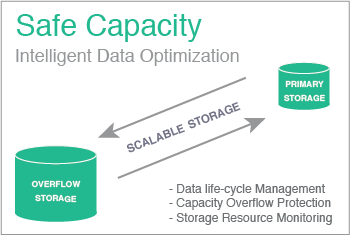
or not at all. The SafeCapacity software can be set up to automatically compress
files based on a policy you create. The files will then be decompressed
automatically if they are accessed. In a sense, it makes your existing
system bigger, faster and more reliable by cutting back on the hardware
necessary to keep the system up and performing.
Can I backup compressed files?
Yes, files can be backed up while compressed. Normally, when files are
accessed, they are automatically decompressed. There are 2 simple procedures
to prevent any backup program from automatically decompressing a file
in the Unix and MPE environments. In essence, SafeCapacity can be configured
on the fly to not decompress files accessed by certain programs.
My backup software also supports compression.
Can SafeCapacity speedup my backup performance in this case?
Yes. SafeCapacity will speed up backup even when software or hardware compression
is enabled during backup. The reason is simple. Since files are pre-compressed,
the disk I/O performance will be greatly improved.
One of the most time-consuming tasks for the backup software is to read data from disk into memory. The actual compression time is relatively insignificant, since CPU speed is much faster than disk. For example, to backup 10 GB, backup software must read in 10 GB from disk. Let's say that SafeCapacity compresses those 10GB down to 2 GB, then the backup software can read those data into memory 5 times faster!
After I close an auto decompressed file, will
it be compressed again immediately?
In Unix and MPE, no, the file is left decompressed since it might be
accessed soon (it could become a frequently accessed file). Once the
file meets the specifiions for the compression chron or batch job your
system runs with SafeCapacity, the file will then be compressed. If desired,
you can compress the file manually if it is known to be a seldom used
file. In Windows NT/2000, SafeCapacity compressed files are compressed again
automatically after the file or program is closed. This is a standard
for files compressed with the NTFS compression.
What files should be compressed?
Any infrequently-used files should be compressed. In Unix and MPE, a
daily or weekly batch or cron job can handle compression automatically.
The SafeCapacity program for Windows NT/2000 is used to set policies that
determine when compression of online files occurs and what files get
compressed. Compressing infrequently-used files will allow more data
to be kept online, making it simple to access at necessary times.
What files should not be compressed?
Production data should not be compressed since they are utilized frequently.
Repeated compression and auto decompression of production data would
be wasteful. The SafeCapacity program can be set to avoid compression of
certain file types. It can also avoid commonly accessed data altogether
using one of the many file filters.
What if I view a compressed file when auto-decompression is disabled?
On Unix and Windows NT/2000 systems, the file is simply uncompressed
since auto-decompression is always available.
On MPE systems without SafeCapacity/MPE integration, printing a file would display the contents of the compressed file, in compressed format. The beginning of the compressed file would read "This is a compressed file." followed by data that would not be recognizable. There is nothing wrong with the file--just enable AUTO decompression or decompress it manually.
With SafeCapacity/MPE integration, the print command would fail with the "COULD NOT OPEN A COMPRESSED OR MIGRATED FILE (FSERR 518)" error message.
On MPE systems without SafeCapacity/MPE integration, printing a file would display the contents of the compressed file, in compressed format. The beginning of the compressed file would read "This is a compressed file." followed by data that would not be recognizable. There is nothing wrong with the file--just enable AUTO decompression or decompress it manually.
With SafeCapacity/MPE integration, the print command would fail with the "COULD NOT OPEN A COMPRESSED OR MIGRATED FILE (FSERR 518)" error message.
What happens if there is not enough disk space
when a file is auto-decompressed?
On Unix or Windows NT/2000, you will receive an out of disk space error
and the file will stay compressed.
On MPE, the file open will receive an "out of disk space" error (file system error number 46) and the file will stay compressed.
Why does my free space increase after I compress
and decompress the same set of files on MPE?
Compressing and decompressing a set of files is like pruning those files,
which releases wasted disk space alloed beyond EOF. The reason is simple:
compression does not compress anything beyond EOF, and decompression
does not allow any disk space beyond EOF. As a result, the amount of
disk space a file occupies may become smaller after a compression and
decompression sequence.
What if I restore a compressed file to a different
system that does not have SafeCapacity? Or what if I find a compressed file
years from now and do not have SafeCapacity?
Relax, the standalone decompression program, SafeCapacity Lite, is free
and you can use it on any system. Use SafeCapacity Lite to decompress
files on any systems that do not have SafeCapacity. In fact, it is a
good idea to always store the standalone decompression program with
your backup. If you have trouble loing it, please contact technical
support at (888) 884.7337 or +1 (408) 346.1414, support@solution-soft.com or your SafeCapacity support representative.
Need more answers? Ask our sales and support representatives by calling 408.346.1400, or email us at info@solution-soft.com